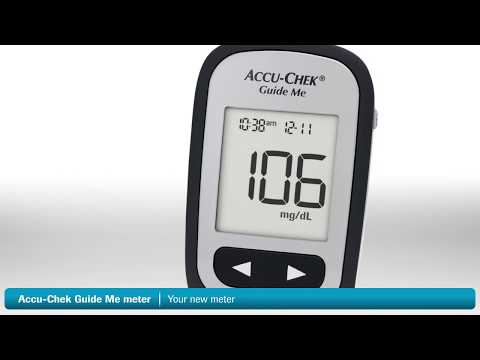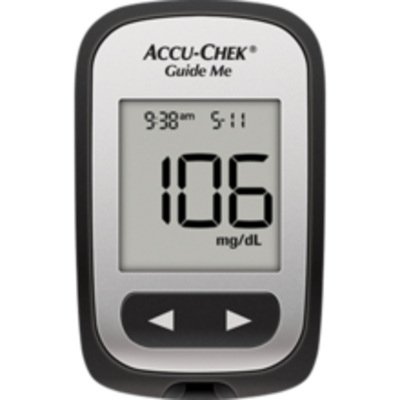
Accu-Chek Guide Me
The simply easy way to measure blood sugar
Use your product specific documents to get to know more about your meter and how to use it.
For more information check out our frequently asked questions.
Your meter comes with the batteries already installed and a preset time and date. You may need to change the time to match your time zone, or if you live in a state that observes daylight saving time, to reflect the time change.
Table of contents:
- Accu-Chek Guide Meter
- Accu-Chek Guide Me Meter
- Accu-Chek Aviva Combo Meter
- Accu-Chek Spirit Combo Meter
How do I turn Bluetooth® off on my Accu-Chek Guide meter
- Go into the Settings menu, then Wireless, then Flight Mode. Press OK to disable Bluetooth communication.
How do I turn Bluetooth® off on my Accu-Chek Guide Me meter
- Press and hold the power button located on the right side of the meter until the Bluetooth® symbol disappears.
How do I turn Bluetooth® off on my Accu-Chek Aviva Combo meter
- Go into the Settings menu, then Meter, then Bluetooth®. Follow the instructions given on the screen.
How do I turn Bluetooth® off on my Accu-Chek Spirit Combo insulin pump
- To turn Bluetooth® service off on the Accu-Chek Spirit Combo insulin pump, go to the Bluetooth® Settings menu.
This article contains instructions on how to replace your Accu-Chek meter batteries. Look for the name of your product to find the relevant instructions or videos below.
Please note that your data will not be lost when you remove the batteries from your meter.
Table of contents:
- Accu-Chek Guide Meter
- Accu-Chek Guide Me Meter
- Accu-Chek Guide Link meter
- Accu-Chek Aviva Meter
- Accu-Chek Aviva Connect Meter
- Accu-Chek Aviva Expert meter
- Accu-Chek Nano meter
- What to do in the case of suspected battery ingestion.
Accu-Chek Guide meter
- Open the child-resistant battery door by inserting a narrow object, such as a pen, into the slot.
- Push the tab in the direction of the arrow and lift the battery door up.
- Release the old batteries by pushing the release button.
- Press and hold the power/set/ok button on the front of the meter for at least 2 seconds. Wait 20 seconds.
- Slide the new batteries under the black tabs with the (+) side facing up.
- Put the battery door back in place and snap it closed. In addition, this video shows you how to change the batteries of the Accu-Chek Guide meter.
Accu-Chek Guide Meter: Changing the Batteries
Accu-Chek Guide Me meter
- Open the child-resistant battery door by inserting a narrow object, such as a pen, into the slot.
- Push the tab in the direction of the arrow and lift the battery door up.
- Remove the old batteries.
- Press and hold the power/set/ok button on the front of the meter for at least 2 seconds. Wait 20 seconds.
- Slide the new batteries under the black tabs with the (+) side facing up.
- Put the battery door back in place and snap it closed. In addition, this video shows you how to change the batteries of the Accu-Chek Guide Me meter.
Accu-Chek Guide Me - Changing Batteries
Accu-Chek Guide Link meter
- Open the battery door on the back of the meter by pushing the tab in the direction of the arrow and pulling the door up.
- Release the old batteries by pushing the release button.
- Remove the old batteries.
- Press and hold the power/set/ok button on the front of the meter for at least 2 seconds. Wait 20 seconds
- Slide the new batteries under the black tabs with the (+) side facing up.
- Put the battery door back in place and snap it closed.
Accu-Chek Aviva meter
- Open the battery door on the back of the meter, remove the old battery, press any button on the meter for 2 seconds, wait 20 seconds.
- Insert the new battery with the (+) facing outwards.
- Snap the battery door back into place.
- Press the on/off button and the meter will beep.
- The setup and hour should be flashing on the display. If the date and time are correct, press and hold the on/off button for at least 4 seconds until the test strip icon appears.
Accu-Chek Aviva Connect meter
- Use your thumb to slide the battery drawer out of the meter.
- Remove the old batteries.
- Replace the new ones in the battery drawer, with the (+) side facing down.
- Slide the battery drawer back into position until it locks into place.
- Accu-Chek Aviva Expert meter
- Remove the battery door from the back of the meter by pushing the tab in the direction of the arrow and pulling up the door.
- Remove the old batteries from the meter.
- Insert three AAA batteries with the (+) and (-) matching the marks in the battery compartment.
- Put the battery door back in place and snap it closed.
Accu-Chek Nano meter
- Open the battery drawer on the back of the meter by sliding it out of the meter.
- Remove the old batteries for at least 20 seconds.
- Press any button on the meter, then insert the new batteries with the (+) facing down.
- Slide the battery drawer back into position until it locks into place.
- Press the on/off button and the meter will beep. The setup and date should be flashing on display.
- Your meter will prompt you to confirm the meter’s time and date settings. If correct, press and hold the on/off button for 4 seconds, then release.
If you have persistent issues with your batteries or power, please contact Accu-Chek Customer Care for assistance.
Battery ingestion

If you suspect your child has swallowed a battery, seek medical attention immediately – prompt action is critical. Don’t wait for symptoms to develop.
Battery ingestion or insertion into the body may cause chemical burns, perforation of soft tissues, and death. Batteries, as small parts, are a choking hazard. Keep them away from children under the age of 3 years.
If the battery compartment does not close securely, stop using the product and keep it away from children. Contact Accu-Chek Customer Care.
Use this guide to determine which test strips will work with your Accu-Chek device. Select your device from the list to navigate to the appropriate section.
Table of contents:
- Accu-Chek Guide Me
- Accu-Chek Guide
- Accu-Chek Guide Link
- Accu-Chek Aviva
- Accu-Chek Aviva Connect
- Accu-Chek Aviva Expert
- Accu-Chek Nano
Accu-Chek Guide Me, Accu-Chek Guide, and Accu-Chek Guide Link meters
The Guide System meters mentioned above use Accu-Chek Guide test strips.
Accu-Chek Aviva, Accu-Chek Aviva Connect, and Accu-Chek Aviva Expert meters
The Aviva System meters mentioned above use Accu-Chek Aviva Plus test strips.
Accu-Chek Nano meter
The Accu-Chek Nano meter uses Accu-Chek SmartView test strips.
Explore the different ways you can simply handle Accu-Chek® Guide test strips when removing them from the SmartPack® test strip vial:
- Front slide
- Side pinch
- Pinch and pull
- Back slide
Remember to follow all instructions in the package insert (wash and dry hands, do not bend or get dirt on the test strip, and close the cap tightly when finished).
Here are some visual instructions on how to handle Accu-Chek Guide test stips.
Pairing your Accu-Chek meter to the mySugr app allows you to automatically log your blood sugar readings into the app, saving you tons of time.
Follow the steps below to pair your Accu-Chek Guide Me, Accu-Chek Guide or Accu-Chek Aviva Connect meter to the mySugr app:
- If you are using an Apple device, make sure Bluetooth® is turned on.
a. Bluetooth should turn on automatically for Android users at the beginning of the pairing process.
- Ensure Location Services are turned on for the mySugr app during the pairing process. (You can turn it back off once you're done. Settings > Apps > mySugr > Location Services.)
- Open the mySugr app and go to the “Connections” tab in the bar menu located at the bottom of the screen.
- Select your meter — Accu-Chek Guide Me, Accu-Chek Guide or Accu-Chek Aviva Connect — and follow the steps on the screen to activate it.
- You'll then receive a message that pairing was successful, meaning your meter is now connected to your mobile device.
- You can return to the mySugr home screen by tapping on "My trend" in the tab menu located at the bottom of the screen
Here are some videos to help provide visual instructions on how to pair your meter with the mySugr app.
How to pair your Accu-Chek Guide meter to the mySugr app:
How to Pair Accu-Chek Guide blood glucose meter with mySugr App
How to pair your Accu-Chek Guide Me meter to the mySugr app:
How to Pair Accu-Chek Guide Me blood glucose meter with mySugr App
Register your Accu Chek Product
Register your Accu-Chek products so that we can share helpful updates and quickly provide assistance when you need it.
Register nowContact us
Mon-Fri from 8 a.m. to 9 p.m. or
Sat-Sun from 9 a.m. to 6 p.m.
Holiday season
Thanksgiving Eve from 8 a.m. to 6 p.m.
Thanksgiving from 8 a.m. to 4 p.m.
Day after Thanksgiving from 8 a.m. to 6 p.m.
+44(20)23121343